Planning
Plan sprints, capacity and roadmaps of your teams with Jira Assistant
Browse this sectionPlanning / Sprint Planner
General
Planning
Pivot Report
Reports
Settings
Miscellaneous
Sprint Planner BETA
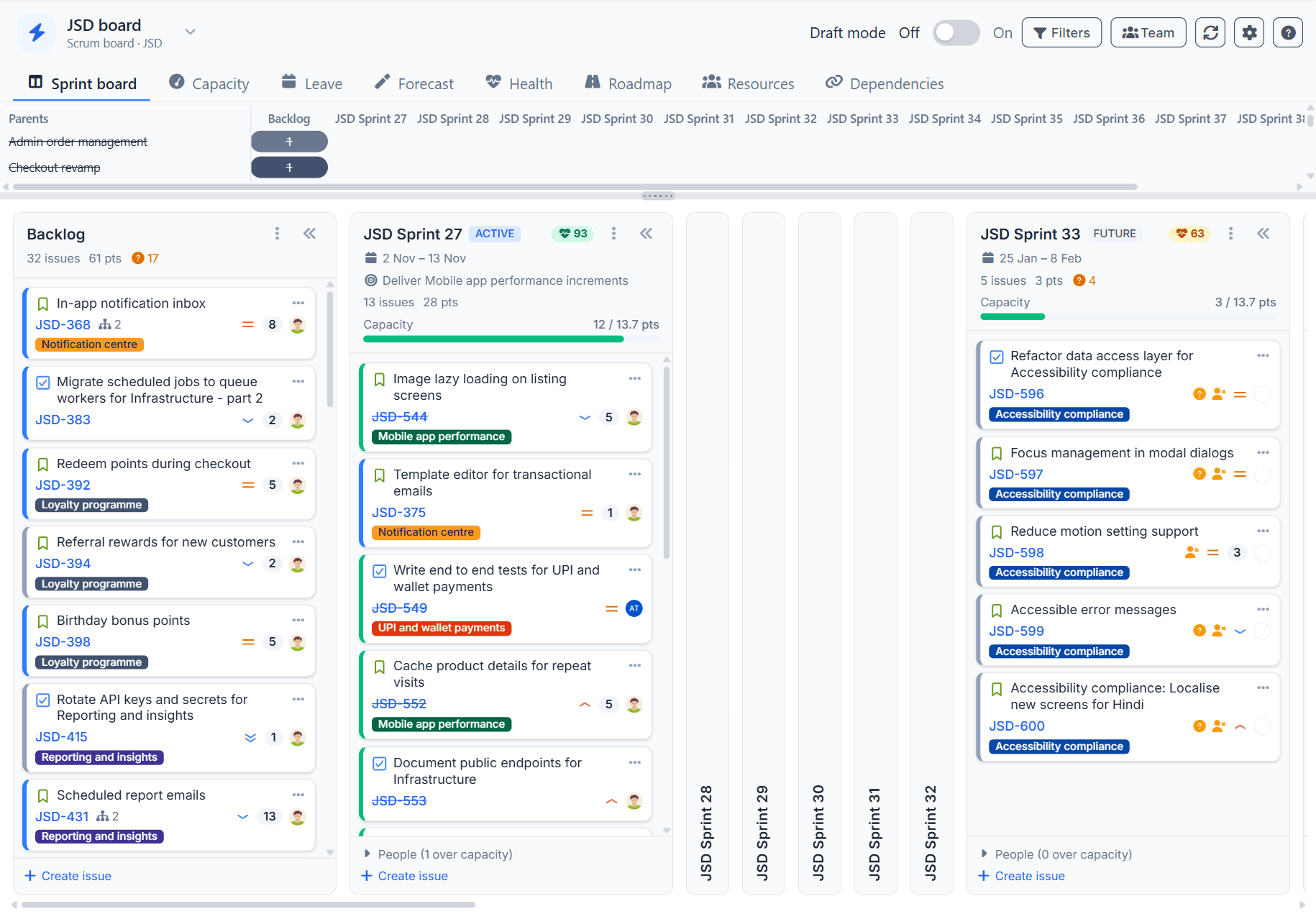
Sprint Planner brings everything needed to plan the sprints of a team into one place: the backlog and sprints of a board, the capacity of each member after leave and holidays, velocity, a forecast of the backlog into upcoming sprints, sprint health, a roadmap, a resource timeline and dependencies. Changes made in the planner are written to Jira, or can be staged in draft mode and applied together.
Available as:
- Planning page: menu Planning Sprint Planner, in every version of Jira Assistant.
- Jira Cloud project page: "Sprint Planner" in the sidebar of a Jira project, from the Jira Assistant Cloud app. It opens the planner for the board of that project.
- Jira Cloud dashboard widget: "Sprint Capacity" widget that shows the commitment of the active sprint of each chosen team against its capacity, with leave and holidays taken into account. Turn on "Show each member" to see the load of each member.
The planner works with Jira Cloud and Jira Data Center / Server. Scrum boards have all the views. Kanban boards have no sprints, so they show capacity by week or month instead, and the views that need sprints (Sprint board, Forecast and Health) are not available.
Getting started
- Choose a board in the toolbar. A board is one team: its filter decides which issues are planned and its estimation field is used for the estimates. Recently used boards are listed first and boards can be searched by name or project key.
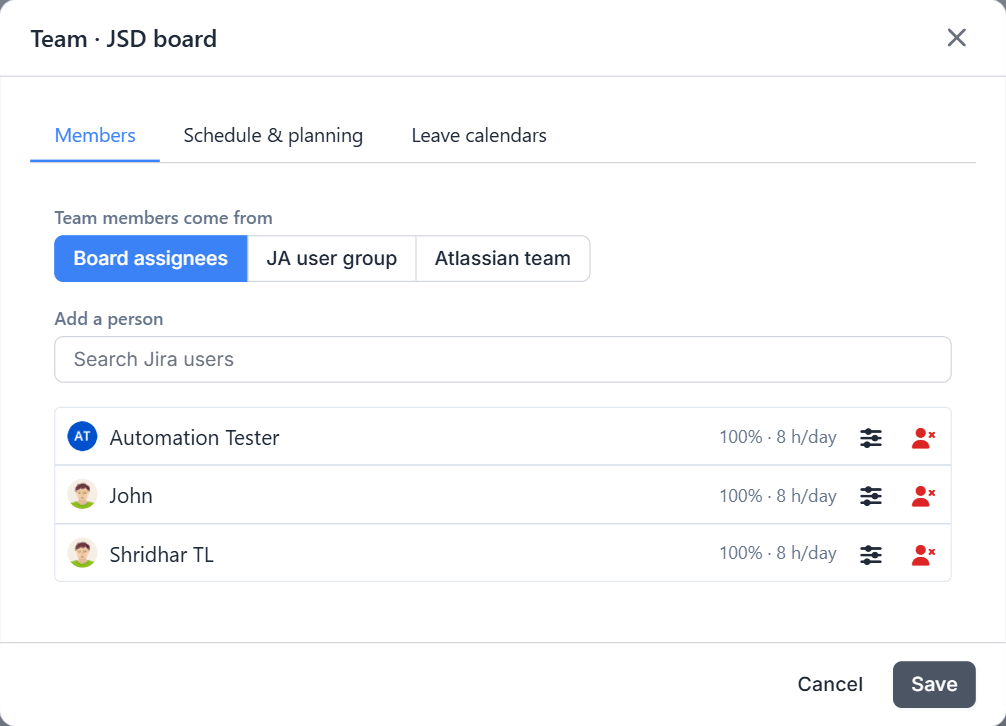
- Open Team to check the members, their allocation to this team, hours per day, working days, the focus factor and the planning unit (story points, hours or both).
- Add leave and holidays in the Leave view or the Capacity view, or connect calendars under Team Leave calendars.
- Use Filters to narrow every view, to reload from Jira and for your own display and date settings.
The views are listed below the toolbar: Sprint board, Capacity, Leave, Forecast, Health, Roadmap, Resources and Dependencies. The selected board and view are part of the page address, so a view can be bookmarked or shared with the team.
The help in the planner explains each view, and is the quickest reference while planning.
Team settings
Team settings are saved on the board, so everyone planning with the board uses the same settings. Open them with Team.
- Members: team members come from the assignees of the board, a Jira Assistant user group or an Atlassian team. People can be added manually. For each member set the allocation to this team (%), the hours per day and the working days.
- Planning: the planning unit (story points, hours or both), the focus factor (%) and the hours per story point used when there is no velocity yet.
- Leave calendars: calendars from which the leave and holidays of the team are read (see below).
Your own settings, opened with , decide how the planner is shown to you: the fields shown on cards, the card density, subtasks, closed sprints, the start and due date fields, the issue link type used for dependencies, the number of sprints to forecast and whether the planner opens in draft mode.
Sprint board
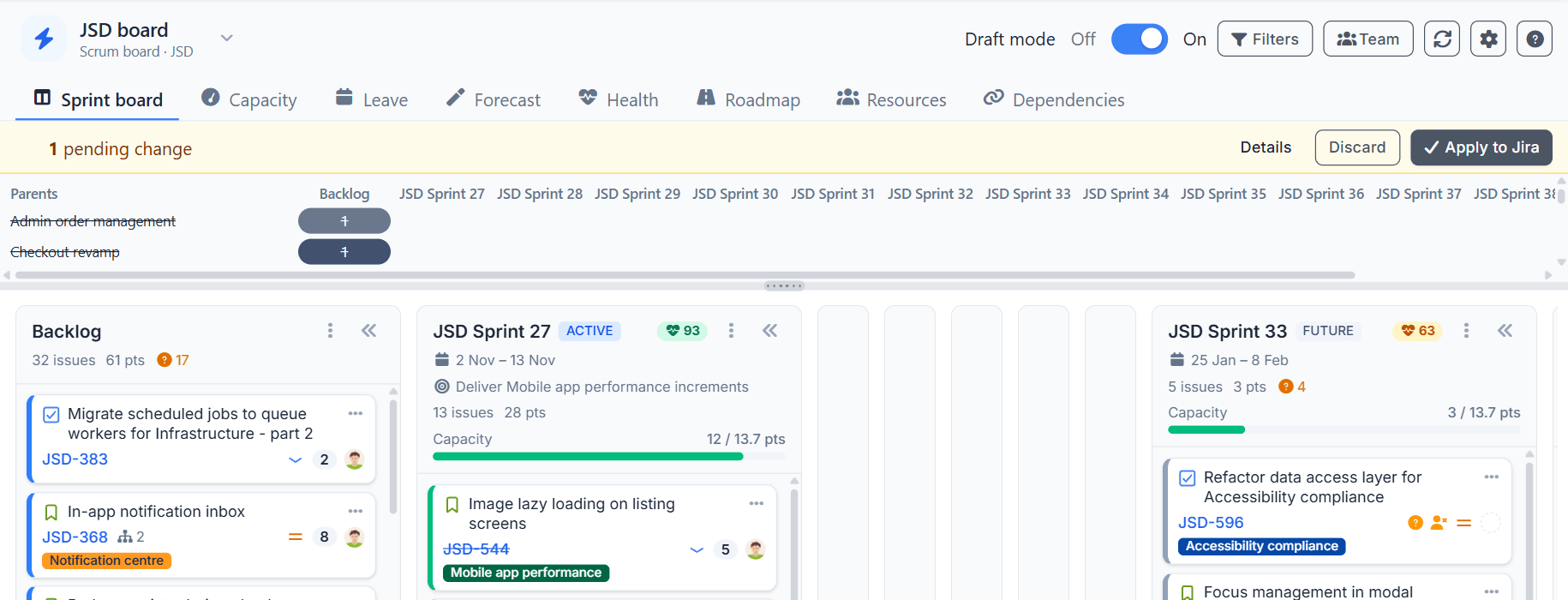
- Columns are the backlog, the active sprint and the future sprints. Turn on closed sprints in the settings to see the last three (read only).
- Drag issues between columns or within a column to change the sprint and the rank in Jira. Ctrl / Cmd + click selects several issues to move together.
- Every card has an menu with Move to, Move to top / bottom, Edit and Add dependency, so nothing needs dragging.
- Double click a card to edit the assignee, estimate, sprint and dates.
- The menu of a column creates, edits, starts or completes sprints, creates issues and sets a capacity override for the sprint. When a sprint is completed, choose whether its open issues move to the backlog, to another sprint or to a new sprint.
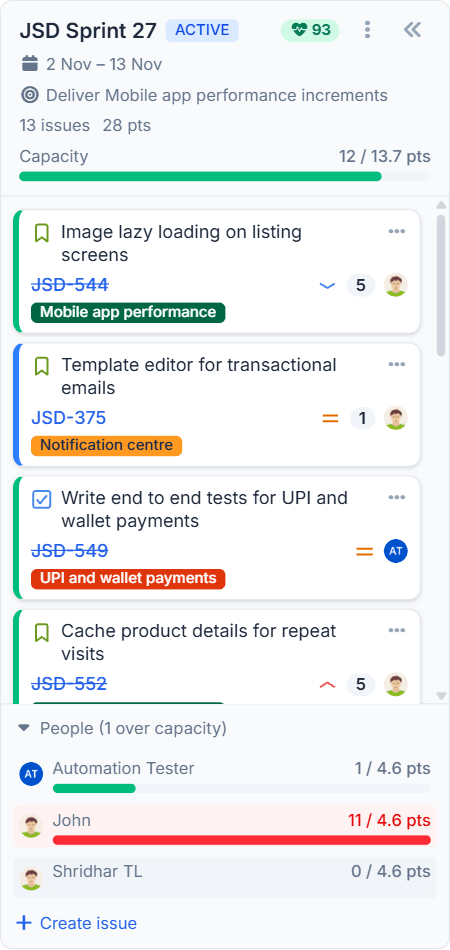
- The capacity bar in each column header compares the committed estimate with the team capacity. Open People in the column footer to see the load of each member, and click a member to filter by them.
- The parent strip above the columns shows where the children of each epic are. Click a parent to highlight its cards. Drag the divider to resize the strip.
- Choose the fields shown on cards, the card density and whether subtasks are rolled up into their parent or shown as their own cards in the settings.
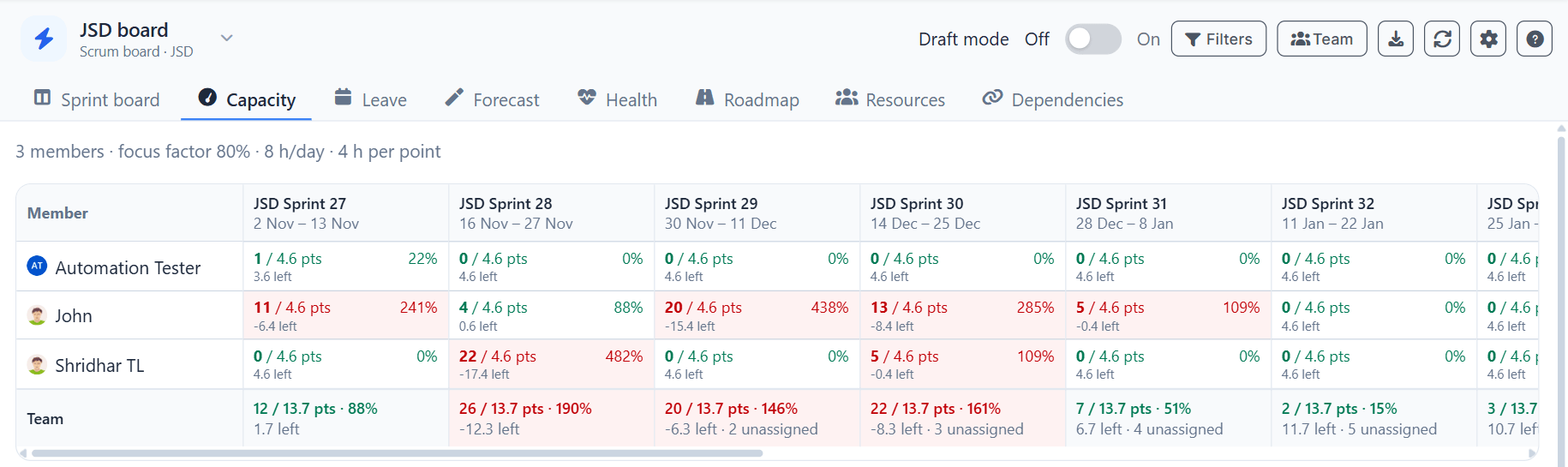
Capacity and velocity
- Capacity of a member = working days in the sprint × hours per day × allocation − leave − holidays, then the sprint override and the focus factor are applied.
- Points capacity uses the selected velocity scaled by the available capacity. Without velocity it uses the hours per story point.
- Velocity lists the last closed sprints with the scope at sprint start and the completed scope. Choose the average, the median, the last sprint or a custom value.
- Kanban boards show capacity by week or month instead of by sprint.
Leave and holidays
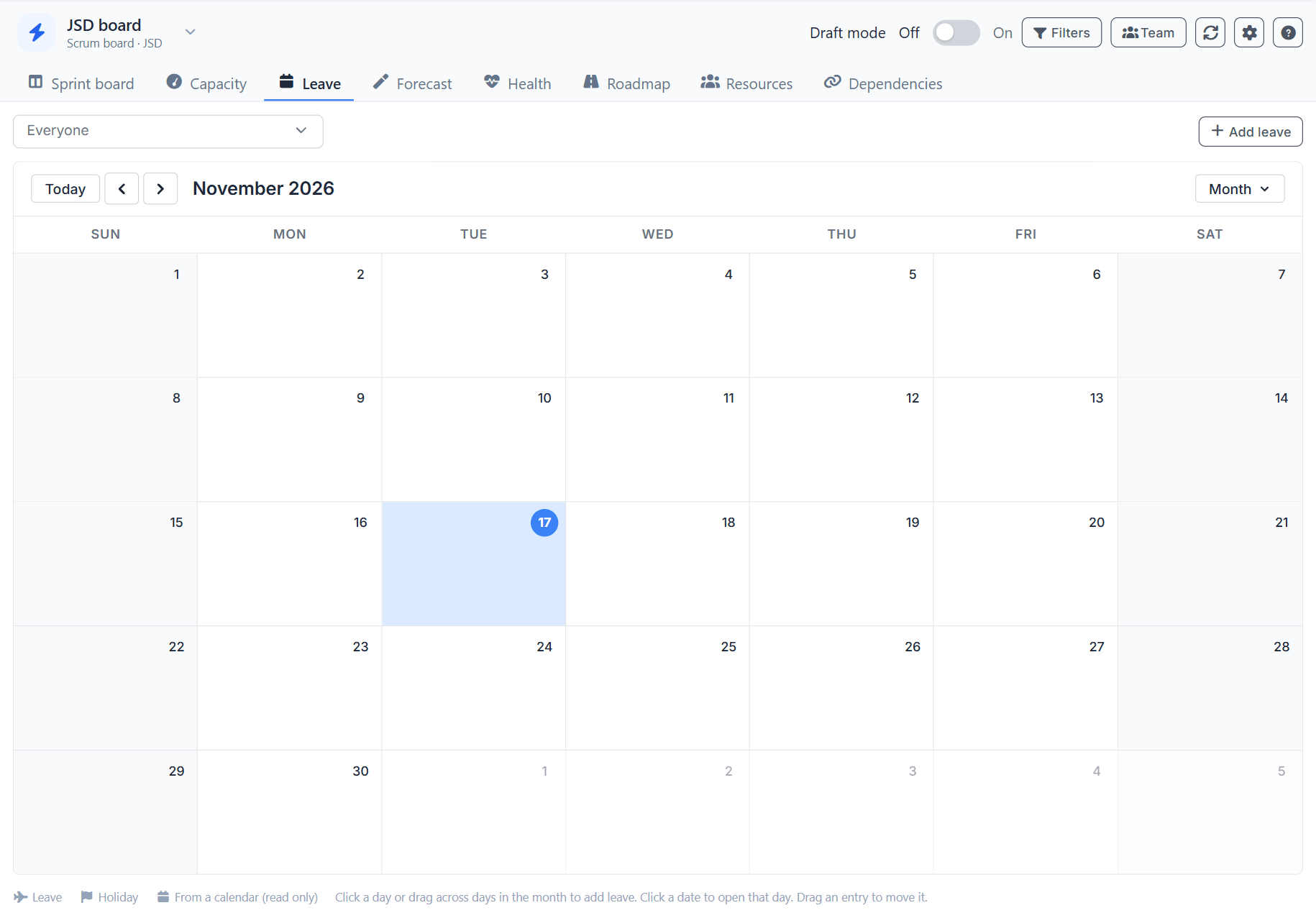
- The Leave view shows the leave and holidays of the team by month, week, day or as a list.
- Click a day or drag across days in the month to add leave, click an entry to edit or delete it, and drag it to move it. Filter by people to see only their leave.
- Leave can also be read from calendars: Outlook, Google, an .ics file or Confluence Team Calendars. Choose which events count, using keywords in the title or category, only all-day events, or the availability shown for the event (busy, tentative, out of office).
- A calendar can hold the leave of each person, which reduces the capacity of that person, or the holidays for the team, which reduce the capacity of everyone or of the chosen people.
- Calendar people that are not matched to a member are listed below the leave table. Map them once and the mapping is kept for the team.
Forecast
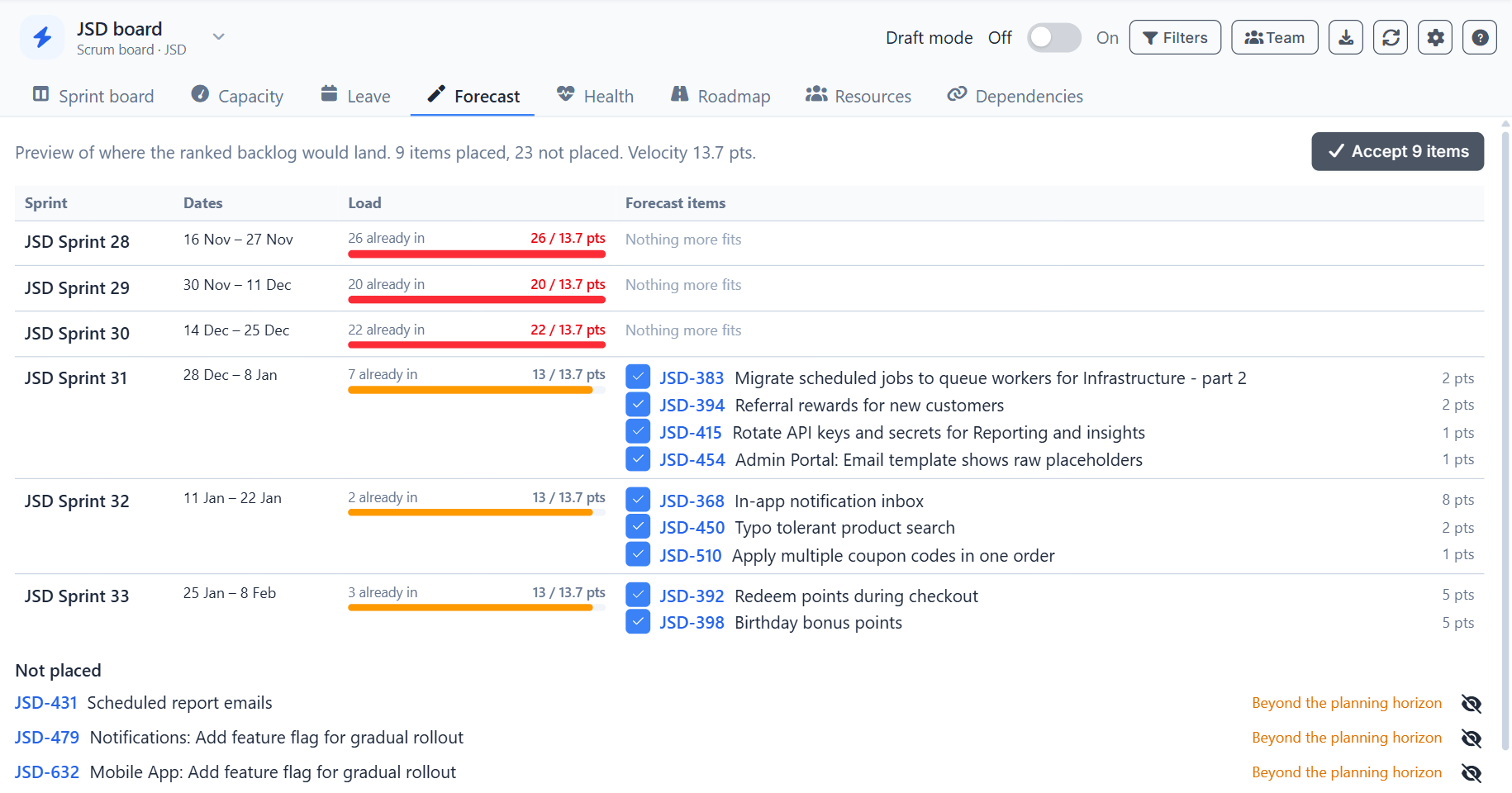
- Forecast places the ranked backlog into the upcoming sprints by capacity, and adds sprints after the last one when needed.
- Untick issues to leave them where they are, then accept. Accepted issues are moved to the sprints in Jira and missing sprints are created.
- Issues that cannot be placed are listed with the reason: not estimated, larger than any sprint, beyond the horizon or blocked by an unplanned issue.
- Turn on Forecast respects dependencies in the settings to place an issue only after the issues blocking it.
Health and tracking
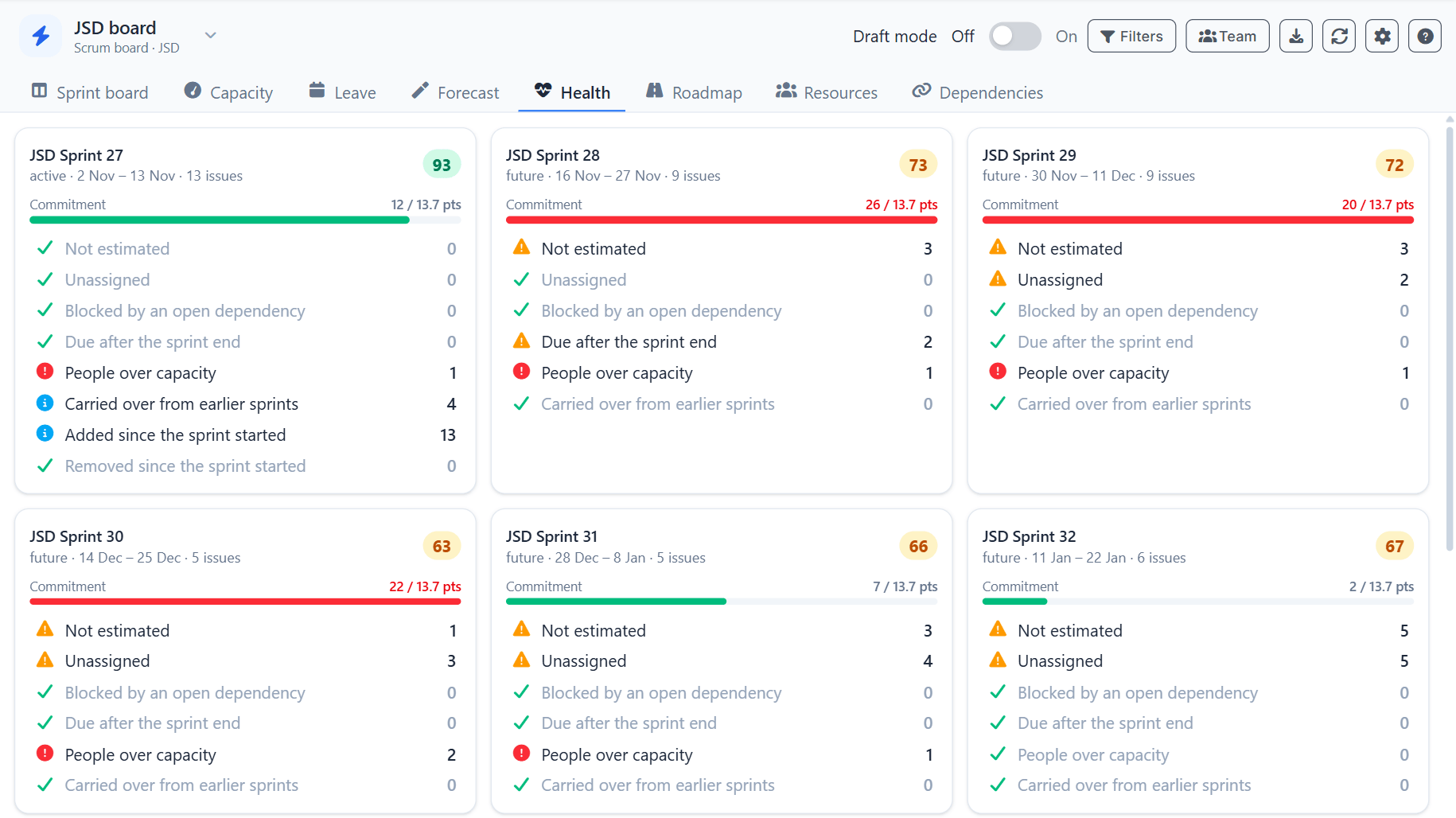
- Health scores each open sprint on unestimated, unassigned and blocked issues, due dates after the sprint end, over-capacity members and carry-over.
- Issues added to and removed from the active sprint after it started are listed as scope change.
- Planned vs actual compares the capacity, committed and remaining estimates with the time logged in the active sprint. Load the logged time when needed.
Roadmap and planned segments
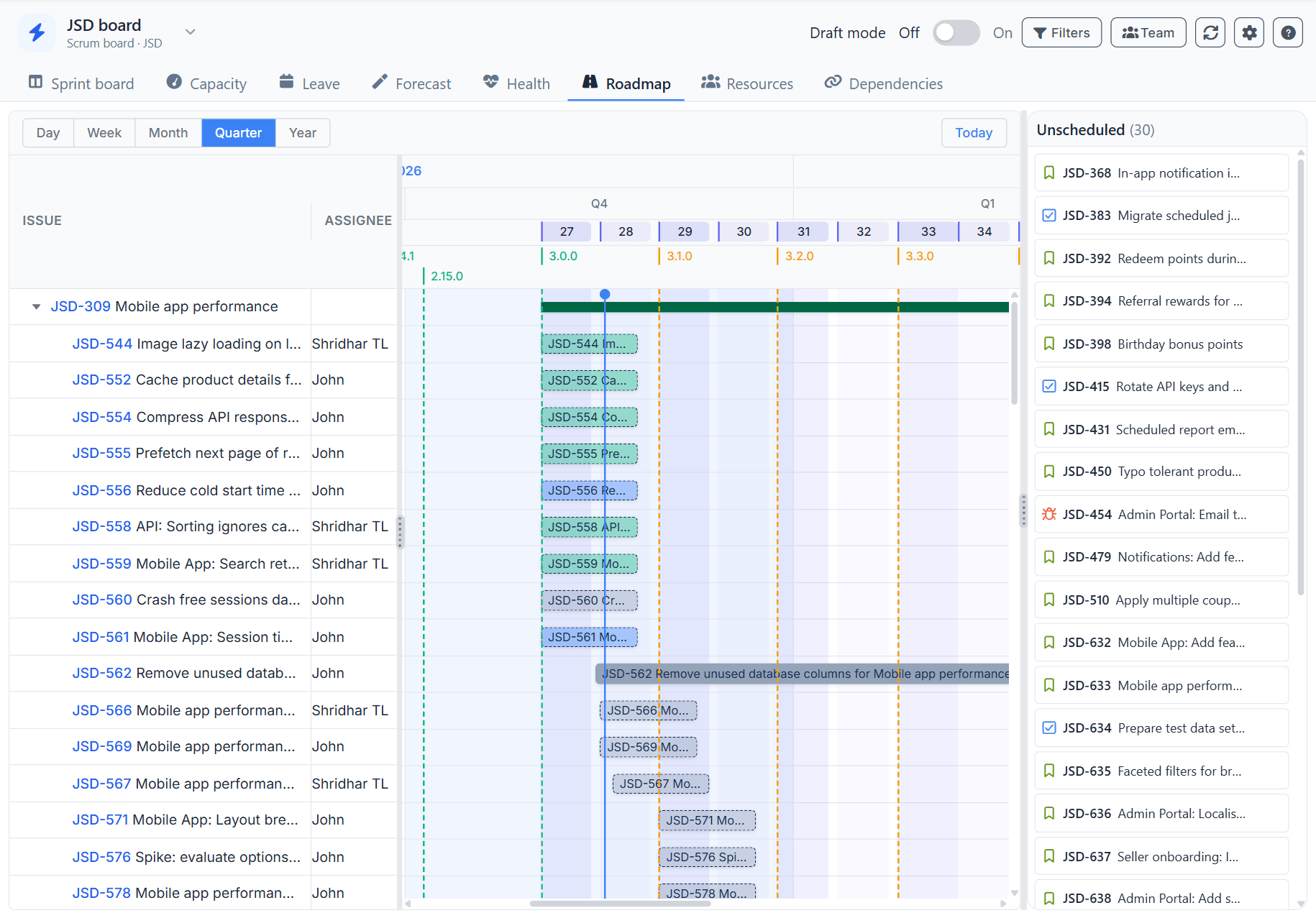
- Roadmap shows epics with their issues by start and due date. Issues without dates use the sprint dates or the estimate, and their bars are faded.
- Zoom by day, week, month, quarter or year. Sprints are shown as bands and releases as markers.
- Drag or resize a bar to change the dates in Jira. Drag from the dot at the end of a bar to another bar to create a dependency, and click a line to remove it.
- Planned segments split the work of an issue into date ranges with their own people and allocation, for example development then testing. Drag on the row of an issue to add one, and double click a segment to edit, split or delete it.
- Once an issue has segments, they are its plan everywhere: roadmap, resources, capacity and the Workload Heatmap. Optionally keep the Jira start and due dates in sync with the segments.
- Choose the hierarchy levels and the bar colour in the settings.
Resources
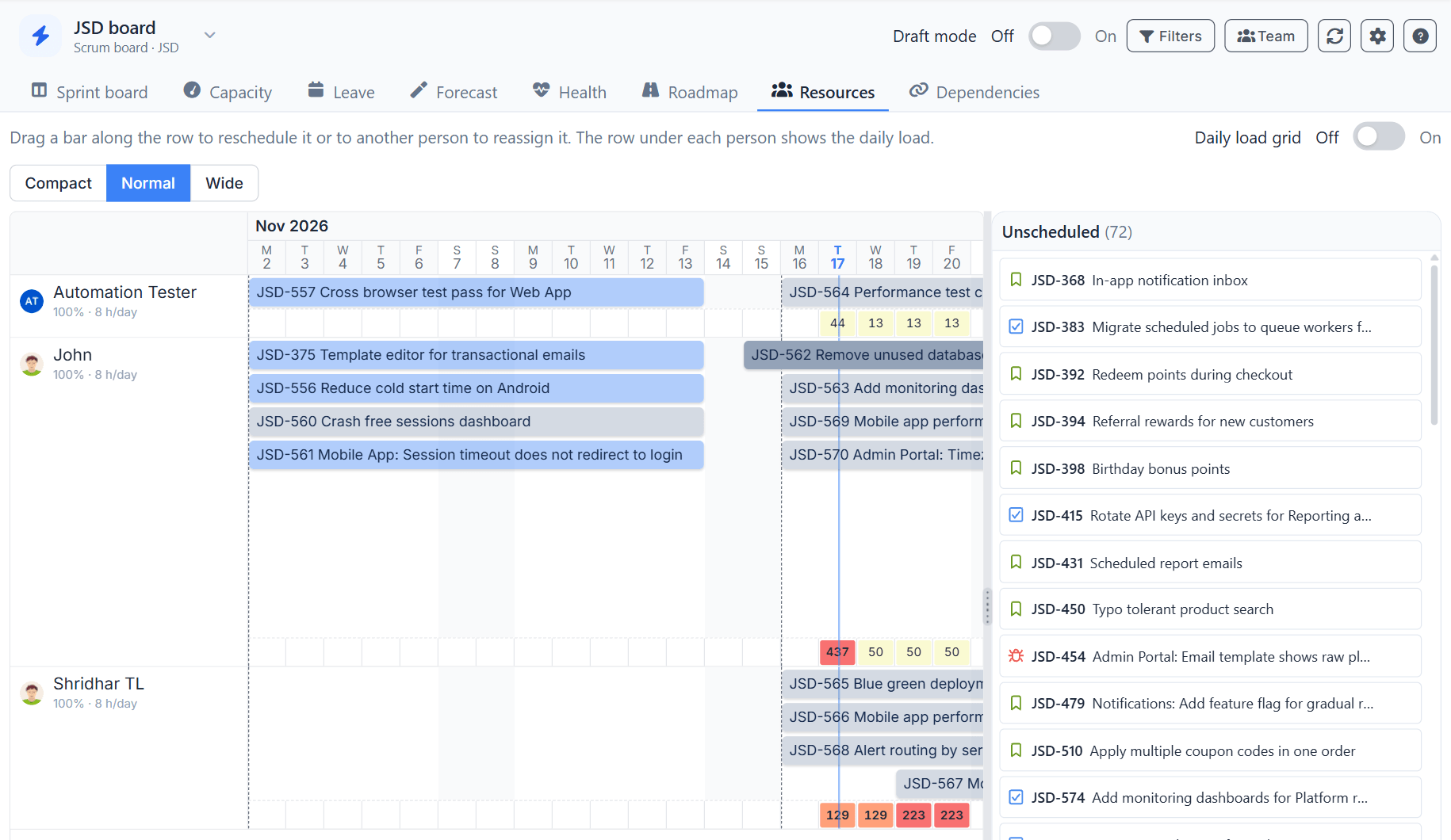
- Resources shows each member with the work planned for them. The row under each person shows the daily load against their capacity.
- Drag a bar along the row to reschedule it or to another person to reassign it. Double click a bar to edit it.
- Drag issues from the Unscheduled list onto a person and a day to plan them. Turn on the daily load grid for the heatmap view of the same data.
- Drag the dividers to resize the timeline, the unscheduled list and the load grid.
Dependencies
- Dependencies are Jira issue links of the chosen link type. Add them from the card menu, by drawing a line on the roadmap or from the Dependencies view.
- The Dependencies view lists every dependency and highlights conflicts, where the blocking issue is planned in the same or a later sprint than the issue it blocks.
- Turn on the dependency lines in the settings to see them between the cards of the sprint board.
Draft mode
- Turn on Draft mode in the toolbar to stage moves, edits, plans and dependencies without writing to Jira. The bar below the toolbar counts the pending changes.
- Apply writes all of them and reports the result of each. Failed changes stay in the draft. Discard restores the board.
- Choose in the settings whether the planner opens in draft mode.
Where the data is kept
- Sprint, rank, assignee, estimate, date and dependency changes are written to Jira.
- Team settings and calendar sources are saved on the board, and planned segments on each issue, so everyone planning with the board sees the same data.
- In the Jira Cloud app, leave is kept in the app storage of your Jira site, per board. In the browser extension, web and desktop versions, leave is saved on the board. Because this data is visible to anyone who can view the board or the issue, the planner asks you to accept a note before anything is saved. Until you accept, you can view everything, but nothing is saved.
- Only the matched leave of a calendar is stored (person, dates and hours), never the whole calendar. Leave older than about 13 months is removed automatically.
- Your display settings are saved for you only.